SVG-SMIL animation tutorial
 From Edutechwiki - Reading time: 30 min
Introduction[edit | edit source]
This short tutorial provides an introduction to dynamic SVG, ie. animations. We introduce some elements of the SMIL ("Synchronized Multimedia Integration Language") tags that are embedded in the SVG specification. Aims:
- Know various SMIL animation types
- Understand the principle of "linking" animation tags to attributes of SVG elements
Prerequisites:
See also:
- SVG (Short overview)
- SVG links (links to various SVG resources)
- Using Inkscape for web animation
See next:
Alternative reading:
- SVG Essentials/Animating and Scripting SVG (Chapter from the Eisenberg book)
Attention: You must use a recent HTML5 compliant browser (issued 2011 or later), e.g. FireFox, Chrome, Opera or Safari. These examples will not work with Internet Explorer 9.
The principle of animation is simple: Animating means changing attributes of SVG elements over time.
There are two methods:
(1) SMIL animation using special animation tags
- We can animate virtually every SVG attribute with these animation elements
- SVG / SMIL animation extends the SMIL standard with some extensions.
- Read Interactive SVG-SMIL animation tutorial in order to add some interactivity (e.g. start an animation)
(2) Animation via the SVG DOM with a script
- Each attribute and "style sheet setting" is available through the standard DOM 1 & 2. In addition, there is a set of additional SVG DOM interfaces.
- Basically, you will have to write an ECMAScript program that changes the attributes of items or that adds / remove elements and/or attributes in the DOM.
- This second method is not covered in this tutorial.
The principle of "time-based" animation:
- Time-based (as opposed to "frame-based" as in Flash) defines the start and duration of an animation in terms of a time unit, e.g. seconds.
- We can animate attributes independently in parallel animations
- In addition, an animation can be triggered though a user action (e.g. a mouse event), or by the ending of another animation.
Animation basics[edit | edit source]
The elements of this section on animation principles are based on the french version of the SMIL Animation W3C Recommendation 4 September 2001.
Definition: Animation is the time-based manipulation of an attribute of a target element.
Animations define a beginning and a simple duration that can be repeated. Each animation defines an animation function that produces a value for the target attribute at any time in the simple duration. The author can specify how long and how often the animation function should repeat itself. The simple duration combined with a repeat behavior defines the active duration.
The target attribute is the name of a characteristic of a target element. It can be either an XML attribute contained in the element or a CSS property applied to the element. By default, the target element of an animation will be the parent of the animation element.
Below is a simple example of an SVG animation. A rectangle changes its dimensions from thin elongated to wide and flattened. The rectangle animation starts with a width of 10 pixels and is increasing to 100 pixels for a duration of 10 seconds. During the same ten seconds, the height of the rectangle will change from 100 pixels to 10 pixels.
<rect x="50" y="50" width="10" height="100" style="fill:#CCCCFF;stroke:#000099">
   <animate attributeName="width"  from="10px"  to="100px"
            begin="0s" dur="10s" />
   <animate attributeName="height" from="100px" to="10px"
            begin="0s" dur="10s" />
</rect>

Instead of animating the parent element, one also can define an animation that refers to another element. In other words, the animation target can be any element in the document identified with an XLink locator, i.e. the equivalent of the HTML "href".
 <rect id="TAG" .....>
 <animate xlink:href="#TAG"
The following example shows the principle:
<?xml version="1.0" encoding="UTF-8"?>
<!DOCTYPE svg PUBLIC "-//W3C//DTD SVG 1.1//EN"
  "http://www.w3.org/Graphics/SVG/1.1/DTD/svg11.dtd">
<svg xmlns="http://www.w3.org/2000/svg"
     xmlns:xlink="http://www.w3.org/1999/xlink">
  <title>Simple animate example avec une référence xLink</title>
  <desc>Rectangle shape will change</desc>
  <rect id="monRect" x="50" y="50" width="10" height="100" style="fill:#CCCCFF;stroke:#000099"/>
  <animate xlink:href="#monRect" attributeName="width"
	   from="10px"  to="100px" begin="0s" dur="10s" />
  <animate xlink:href="#monRect" attributeName="height"
	   from="100px" to="10px"  begin="0s" dur="10s" />
  <text x="50" y="170" style="stroke:#000099;fill:#000099;font-size:14;">
  Hello. Admire the dynamic rectangle. Animation defined with targetElement.</text>
</svg>

This example also shows that one also can define an SVG DocType. This facilitates editing with an XML editor. It also shows that we must define a XML namespace for the href, e.g. use code like this:
<svg xmlns="http://www.w3.org/2000/svg"
     xmlns:xlink="http://www.w3.org/1999/xlink">
When the animation runs, it will not really change the attribute values in the object model DOM or CSS Object Model. In other words, animations only manipulate the presentation value and should not affect what is called the base value defined by the DOM or the CSS DOM. When an animation completes, the effect of the animation ceases to apply and the presentation value defaults to the base value. That being said, we can "extend" the animation effect and freeze the last value for the rest of the document duration.
In an animation, one can either replace' or add a value to the base value of the attribute. In this context, the base value may be the value of the DOM or the result of other activities aimed at the same attribute. This broader concept of value is called the basic underlying value. The animations that add to the underlying value are called additive. Animations that override the underlying value are called non-additive.
Overview of SMIL animation markup[edit | edit source]
There are five animation elements (tags):
- animate: used to animate over time a single attribute or a single CSS property
- set: provides a simple way for setting a single attribute value for a specified duration.
- animateMotion: causes the displacement of an element along a path of movement (called motion tweening in Flash).
- animateColor: specifies a color transformation over time. This is a deprecated element, since animate does the same. Do not use it !
- animateTransform: animates a transformation attribute on a target element, thereby allowing animations to control translation, scaling, rotation and / or inclination.
For each of these animation tags you can use certain types of attributes / values. We first will introduce some of these attributes through examples. For those who can read a DTD we have included a partial formal definition that was mainly taken from the SMIL Animation W3C Recommendation 04-September-2001
A more systematic discussion of the common attributes is provided at the end.
Introductory example
The following example introduces the animate element (the easiest animation tag) plus some other principles
- http://tecfa.unige.ch/guides/svg/ex/anim-trans/translation.svg
- http://tecfa.unige.ch/guides/svg/ex/anim-trans/ (directory)

<svg xmlns="http://www.w3.org/2000/svg">
 <rect x="50" y="50" width="200" height="100" style="fill:#CCCCFF;stroke:#000099">
  <animate attributeName="x" attributeType="XML"
           begin="0s" dur="5s" from="50" to="300" fill="freeze"/>
 </rect>
 <text x="55" y="90" style="stroke:#000099;fill:#000099;fontsize:24;">
  Hello. Let’s show a crawling rectangle ! </text>
</svg>
- The <animate /> element is simply placed inside the element we want to animate
- In this case, it animates the horizontal position ("x") of a rectangle (rect)
- attributeName - we animate the attribute "x" of parent "rect"
- begin = "0s" - animation starts after 0 seconds
- dur = "5s" - duration is 5 seconds
- from = "50" - starting point for x
- to = "300" - end point of X
- fill = "freeze" - the animation will freeze at the end (ie. the rectangle stays where it is)
Animation of XML vs. CSS attributes
By default, animated properties are XML attributes, as opposed to CSS properties. XML attribute animation is the default, however in case of ambiguity, one can specify attributeType="XML" or attributeType="CSS". SVG shares many of its styling properties with CSS2 and adds some of its own. Some SVG attributes like positioning does not exist in CSS form. See the Styling section of the SVG 1.1 specification for details.
Let's show a CSS animation of a CSS fill-opacity property.

<?xml version="1.0" ?>
<svg xmlns="http://www.w3.org/2000/svg">

 <title>Simple CSS property animation</title>

 <rect x="50" y="50" width="300" height="100"
       style="fill:blue; stroke:#000099; fill-opacity:0.1">
  <animate attributeName="fill-opacity" attributeType="CSS"
           begin="0s" dur="10s" from="0.1" to="1" fill="freeze"/>
 </rect>
 <text x="55" y="90" style="stroke:#000099;fill:#000099;font-size:14;">
  Hello. Let's animate fill-opacity.</text>
</svg>
As of Jan 2014, animation of CSS properties may not work in some browsers. E.g 2013 versions of Firefox didn't implement this, but the situation is improving. Also notice that CSS property names can be different from XML attribute names.
Animation of an attribute with the animate element[edit | edit source]
The animate element can animate a single attribute. Most often we define a from value and a to value, like in the example shown just above.
attributeName="x" from="50" to="300"
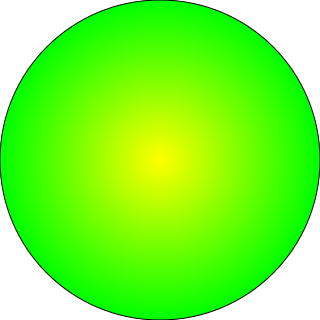
The following example shows first how to create a definition for a gradient circle: yellow on the inside (255,255,0) and green on the outside (0,256,0). This gradient is then used in the fill of the ellipse.
Then we create an animation to enlarge / shrink an ellipse. For this, we animate attributes rx and ry (x and y radius) with a set of values that express: min, max, min values.
attributeName = "rx" values = "0% 50% 0%" dur = "2s"
attributeName = "ry" values = "0% 50% 0%" dur = "2s"
As you can see, this time we are not using the "to" and the "from" attribute, but the "values" attribute allowing to enter a series of key values from start to end. The SVG engine will then interpolate all the values in between.
<svg version="1.1"
  width="320" height="320"
  xmlns="http://www.w3.org/2000/svg">
  <defs>
    <radialGradient id="circleGrad">
      <stop offset="0%"   stop-color="rgb(255, 255, 0)" />
      <stop offset="100%" stop-color="rgb(  0, 255, 0)" />
    </radialGradient>
  </defs>

  <ellipse fill="url(#circleGrad)" stroke="#000"
           cx="50%" cy="50%" rx="50%" ry="50%">
    <animate attributeName="rx" values="0%;50%;0%" dur="2s"
      repeatCount="indefinite" />
    <animate attributeName="ry" values="0%;50%;0%" dur="2s"
      repeatCount="indefinite" />
  </ellipse>
</svg>
- File: http://tecfa.unige.ch/guides/svg/ex/anim-trans/ellipse-growth.svg
- Original: Сhoosing Between the Two (Feb 2010).
Partial formal definition of the animate tag
- The animate element (SMIL Animation, W3C Recommendation 04-September-2001)
<!ELEMENT animate EMPTY>
<!ATTLIST animate
  calcMode       (discrete | linear | paced | spline ) "linear"
  values         CDATA  #IMPLIED
  keyTimes       CDATA  #IMPLIED
  keySplines     CDATA  #IMPLIED
  from           CDATA  #IMPLIED
  to             CDATA  #IMPLIED
  by             CDATA  #IMPLIED

  <!-- Timing attributes -->
  begin          CDATA  #IMPLIED
  dur            CDATA  #IMPLIED
  end            CDATA  #IMPLIED
  restart        (always | never | whenNotActive)  "always"
  repeatCount    CDATA  #IMPLIED
  repeatDur      CDATA  #IMPLIED
  fill           (remove | freeze) "remove"

  <!-- Common animation attributes -->

  attributeName  CDATA  #REQUIRED
  attributeType  CDATA  (CSS | XML | auto) "auto"
  additive       (replace | sum) "replace"
  accumulate     (none | sum) "none"

  <!-- Common event attributes -->
  onbegin        CDATA  #IMPLIED
  onend          CDATA  #IMPLIED
  onrepeat       CDATA  #IMPLIED
>
Transform a drawing with the set element[edit | edit source]
The 'set' element provides a simple means for setting a single attribute value for a specified duration. It manages all types of attributes, including those that can not reasonably be interpolated, such as strings and Boolean values.
- The 'set' element is not additive. So the attributes that control event sequences will not work.
Example: Simple animation and animation set
The first rectangle (blue) below appears after 4 seconds. Visibility is first hidden and then visible. The second one (yellow) is animated through the "opacity" attribute, i.e. from 0 (invisible/total see through) to 1 (totally opaque).
<rect x="50" y="50" width="200" height="100" style="fill:#CCCCFF;stroke:#000099"
    visibility ="hidden" >
    <set attributeName="visibility" attributeType="XML"
      begin="4s" dur="5s" to="visible"/>
  </rect>

<rect style="fill:yellow;stroke:#000099" x="250" y="50" width="200" height="100" opacity="0" >
    <animate attributeName="opacity" attributeType="XML"
      begin="1s" dur="5s" from="0" to="1" fill="freeze"/>
  </rect>
- http://tecfa.unige.ch/guides/svg/ex/anim-trans/simple-set.svg
- http://tecfa.unige.ch/guides/svg/ex/anim-trans/ (directory)

Partial formal definition
<!ELEMENT set EMPTY>
<!ATTLIST set
  attributeName  CDATA  #REQUIRED
  attributeType  CDATA  (CSS | XML | auto) "auto"
  to             CDATA  #IMPLIED
 <!-- Timing attributes -->
  begin          CDATA  #IMPLIED
  dur            CDATA  #IMPLIED
  end            CDATA  #IMPLIED
  restart        (always | never | whenNotActive)  "always"
  repeatCount    CDATA  #IMPLIED
  repeatDur      CDATA  #IMPLIED
  fill           (remove | freeze) "remove"
>
Color animation[edit | edit source]
From the SVG 1.1. specification: The use of ‘animateColor’ is deprecated, since all of its functionality can be achieved simply by using ‘animate’ to target properties that can take color values. The ‘animateColor’ element may be dropped from a future version of the SVG specification.
Color animation using animate[edit | edit source]
This first example shows how to embed an animate element within the SVG element that will change color
<svg height="900" width="900">

<!-- un gros rectangle qui remplit l’écran -->
<rect style="fill:#000000;" height="900" width="900" y="0" x="0">
  <animate fill="freeze" dur="5s" begin="0.1s"
        to="#FFFFFF" from="#000000" calMode="linear" attributeName="fill"/>
</rect>

<!-- représentation d’une tige (rectangle haut et fin) -->
<rect style="fill:#CC9933;stroke:#CC9933" width="20" height="500"
      ry="5" rx="5" y="100" x="400">
   <animate dur="5s" begin="1s" to="#000000"
            from="#CC9933" calcMode="linear" attributeName="fill"/>
   <animate dur="5s" begin="6s" from="#000000"
            to="#CC9933" calcMode="linear" attributeName="fill"/>
</rect>
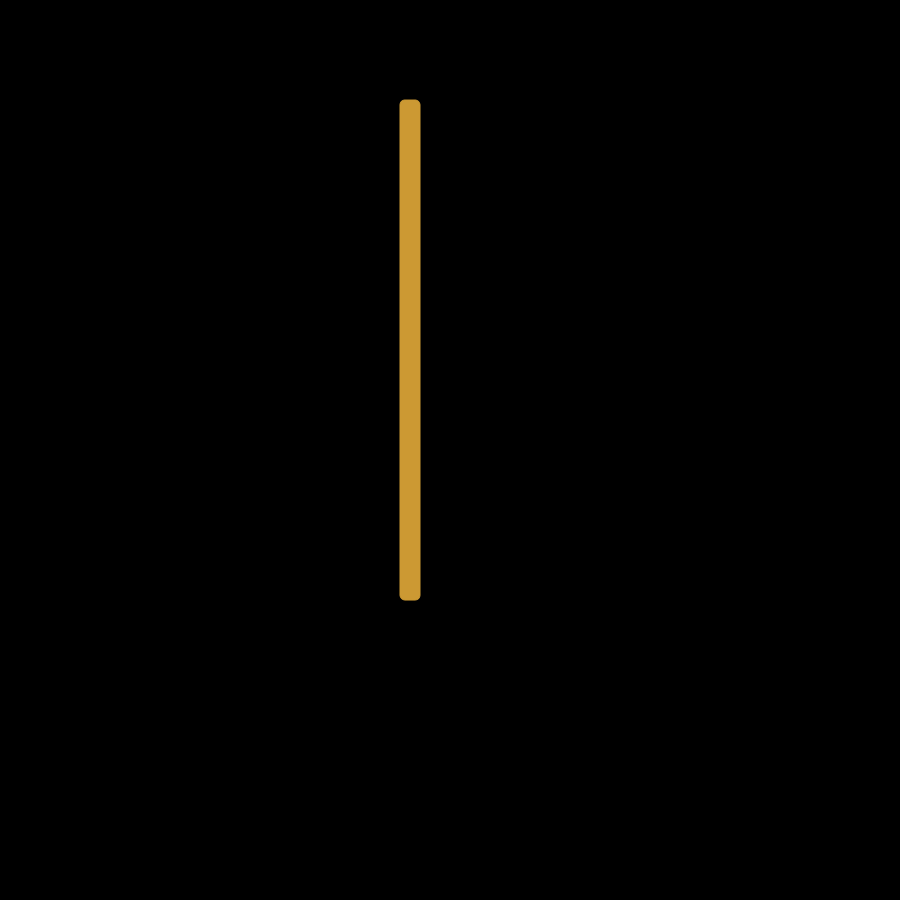
The principle is quite simple: the animation "moves" from one color to another. It includes two animations
- Background goes white to black (from = "# 000000") to (to = "# FFFFFF")
- The rod will go from = "#CC9933" to "#000000" (after 1s and during 4sec) and then from #000000 to "#CC9933".
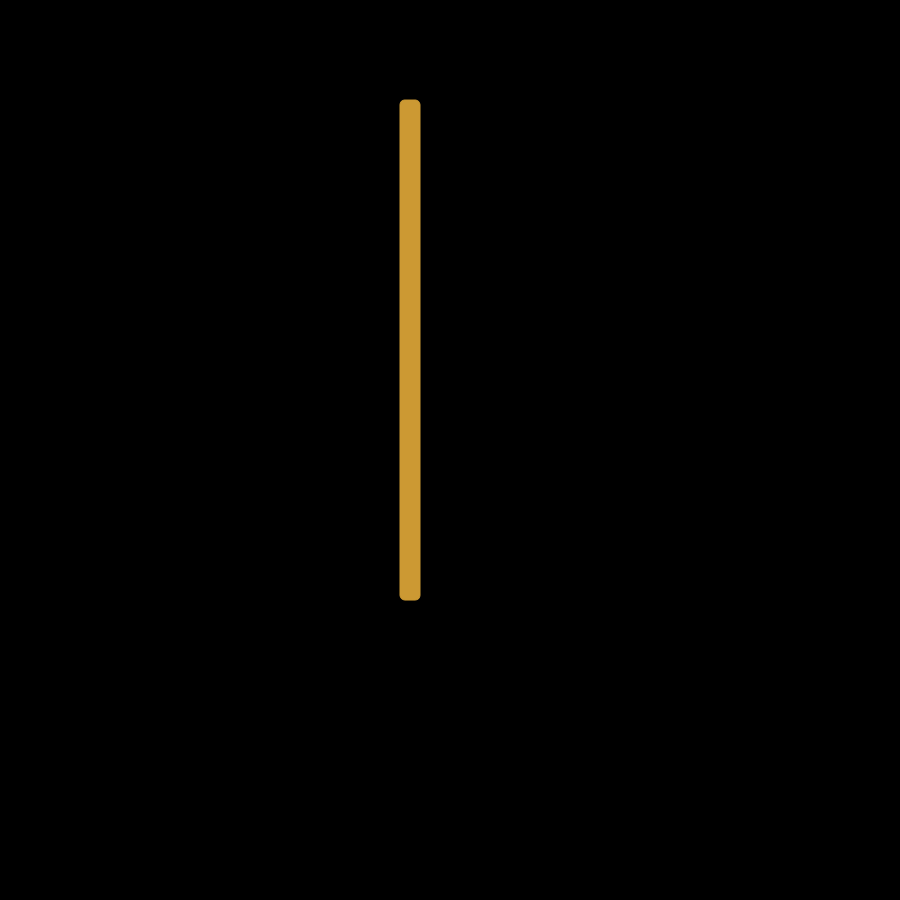
The following example does exactly the same, except that we use the linking mechanism. Notice that we do declare the xlink namespace on top and that referring to an id requires using the # !!!
<?xml version="1.0" standalone="no"?>

<svg xmlns="http://www.w3.org/2000/svg"
     version = "1.1"
     xmlns:xlink="http://www.w3.org/1999/xlink"
     height="900" width="900" viewBox="0 0 900 900">

  <desc>This doesn't work</desc>

  <rect id="big" style="fill:#000000;" height="100%" width="100%" y="0" x="0"/>
  <animate xlink:href="#big" fill="freeze" dur="5s" begin="0.1s" to="#FFFFFF" from="#000000" calMode="linear" attributeName="fill"/>

  <rect id="stick" style="fill:#CC9933;stroke:#CC9933" width="20" height="500" ry="5" rx="5" y="100" x="400"/>
  <animate xlink:href="#stick" dur="5s" begin="1s" to="#000000" from="#CC9933" calcMode="linear" attributeName="fill"/>
  <animate xlink:href="#stick" dur="5s" begin="6s" from="#000000" to="#CC9933" calcMode="linear" attributeName="fill"/>

</svg>
animateColor example[edit | edit source]
Just for the sake of typing another element name, we show an animateColor plus animate example that is side to side. As you can see, the code is the same. Notice that animateColor is not implemented in Firefox as of Jan 2014 (ok, since this is a depreciated element).
<!DOCTYPE html>
<html>
  <head>
    <title>SVG SMIL animateColor</title>
    <meta http-equiv="Content-type" content="text/html;charset=UTF-8" />
  </head>
  <body>
    <p>So lovely ! Using values ="red; orange; yellow; green; blue; indigo; violet; red".
       In order to make this smooth, we add red at the end. </p>
       <p>Tested with Chrome (April 2012). animateColor (left) doesn't work with Firefox 11, animate (right) does.</p>
    <svg width="300px" height="200px" xmlns="http://www.w3.org/2000/svg">
      <circle cx="100" cy="100" r="50" fill="red">
	<animateColor
	    attributeName="fill"
	    begin="1s"
	    dur="10s"
	    values ="red; orange; yellow; green; blue; indigo; violet; red"
	    repeatCount="indefinite"
	    />
      </circle>
      <circle cx="200" cy="100" r="50" fill="red">
	<animate
	    attributeName="fill"
	    begin="1s"
	    dur="10s"
	    values ="red; orange; yellow; green; blue; indigo; violet; red"
	    repeatCount="indefinite"
	    />
      </circle>
    </svg>
    <hr/>
    <a href="http://validator.w3.org/check?uri=referer">W3C validator</a>
  </body>
</html>
Partial formal definition
<!ELEMENT animateColor EMPTY>
<!ATTLIST animateColor
  <!-- Timing attributes -->
  begin          CDATA  #IMPLIED
  dur            CDATA  #IMPLIED
  end            CDATA  #IMPLIED
  restart        (always | never | whenNotActive)  "always"
  repeatCount    CDATA  #IMPLIED
  repeatDur      CDATA  #IMPLIED
  fill           (remove | freeze) "remove"

  <!-- Common animation attributes -->
  attributeName  CDATA  #REQUIRED
  attributeType  CDATA  (CSS | XML | auto) "auto"
  additive       (replace | sum) "replace"
  accumulate     (none | sum) "none"

  calcMode       (discrete | linear | paced | spline ) "linear"
  values         CDATA  #IMPLIED
  from           CDATA  #IMPLIED
  to             CDATA  #IMPLIED
  by             CDATA  #IMPLIED
  keyTimes       CDATA  #IMPLIED
  keySplines     CDATA  #IMPLIED
>
Shape transformation with AnimateTransform[edit | edit source]
Simple rotation example[edit | edit source]
<?xml version="1.0" ?>
<!DOCTYPE svg PUBLIC "-//W3C//DTD SVG 1.0//EN" "http://www.w3.org/TR/2001/PR-SVG-20010719/DTD/svg10.dtd">
<svg xmlns="http://www.w3.org/2000/svg">
  <title>Simple rotation example</title>
  <desc> Rotation with a grouping node </desc>
  <g>
    <rect x="50" y="50" rx="5" ry="5" width="200" height="100"
	  style="fill:#CCCCFF;stroke:#000099"/>
    <text x="55" y="90" style="stroke:#000099;fill:#000099;font-size:18;">
	Hello. Let's rotate</text>
    <animateTransform attributeName="transform" type="rotate"
		      values="0 150 100; 360 150 100"
		      begin="0s" dur="5s" />
  </g>
</svg>

This ugly rotation example
- Animates the attribute "rotate" attribute of <g> (which initially is without rotation)
- We give SVG just two degree values for the rotation (0 for departing and 360 for the end). The rest is interpolated by the machine.
This example also shows that one can animate any attribute that is implicitly defined. In the source code, we did not specify any initial rotation. By default it is just zero (0).
Combined rotation and animate example[edit | edit source]
<!DOCTYPE html>
<html>
  <head>
    <title>SVG SMIL Animate with transform</title>
  </head>
  <body>
    <svg width="200px" height="200px" xmlns="http://www.w3.org/2000/svg">
      <rect x="0" y="0" width="300" height="200" fill="yellow" stroke="black" stroke-width="1" />
      <circle cx="100" cy="100" r="1" fill="red"/>
      <rect x="0" y="100" width="10" height="30" fill="blue" stroke="black" stroke-width="1" transform="rotation">
	<desc> Rectangle that is sort of homing in.
	Rotate from 0 to 360 degrees, with a rotation center (tiny red dot) of x=100 and y=100.
	At the same time we move the x and y position of the rectangle. This creates some sort of spiral.
	</desc>
	<animateTransform
	    attributeName="transform"
	    begin="2s"
	    dur="5s"
	    type="rotate"
	    from="0 100 100"
	    to="360 100 100"
	    repeatCount="indefinite"
	    />
	<animate attributeName="x" attributeType="XML"
		 begin="2s" dur="20s" from="0" to="95" fill="freeze"/>
	<animate attributeName="y" attributeType="XML"
		 begin="2s" dur="20s" from="100" to="85" fill="freeze"/>
      </rect>
    </svg>
  </body>
</html>
- Inspiration: https://developer.mozilla.org/en/SVG/SVG_animation_with_SMIL (but the author got something wrong)
- Example file: http://tecfa.unige.ch/guides/svg/ex/html5/animation/transform--rotate-plus-move.html
Partial formal definition
<!ELEMENT animateTransform EMPTY>
<!ATTLIST animateTransform
  type          (translate | scale | rotate | skewX | skewY)
  <!-- qqs. attributs en plus -->
  values         CDATA  #IMPLIED
  from           CDATA  #IMPLIED
  to             CDATA  #IMPLIED
  by             CDATA  #IMPLIED
  begin          CDATA  #IMPLIED
  dur            CDATA  #IMPLIED
  end            CDATA  #IMPLIED
>
Interpolation of movement with animateMotion[edit | edit source]
animateMotion can be quite hairy, in particular if you plan to animated some complex imported drawing. Most examples we have seen on the Internet somewhat cheat, i.e. use simple objects that sit close to the origin. See also the Interactive SVG-SMIL animation tutorial, it includes some more examples.
Simple animation along a path example[edit | edit source]
The path was drawn (quickly) with SVG-Edit using the path tool. We just added a "Z" at the end in order to close the path.
<?xml version="1.0" encoding="UTF-8"?>
<svg xmlns="http://www.w3.org/2000/svg"
     xmlns:xlink="http://www.w3.org/1999/xlink">
  <title>Simple Motion animation example</title>

 <rect x="15" y="5" rx="5" ry="5" width="20" height="10" style="fill:#CCCCFF;stroke:#000099">
  <animateMotion dur="6s" repeatCount="indefinite" rotate="auto">
       <mpath xlink:href="#path1"/>
    </animateMotion>
   </rect>
 <path id="path1" d="m21,39c0,0 46,-44 79,-1c33,43 62,58 97,26c35,-32 86,-30 86,
       -31c0,-1 61,-9 29,43c-32,52 -19,51 -87,51c-68,0 -158,-5 -158,-6c0,-1 -40,-11 -41,-12 Z"
       stroke-width="5" stroke="#000000" fill="none"/>
</svg>

Bouncing ball example[edit | edit source]
This HTML5 example was found in the SVG animation with SMIL tutorial of the Mozilla Developer Network:
  <!DOCTYPE html>
<html>
  <head>
        <title>SVG SMIL Animate with Path</title>
	<meta http-equiv="Content-type" content="text/html;charset=UTF-8">
  </head>
  <body>
    <h1>SVG SMIL Animate with Path</h1>
    <svg xmlns="http://www.w3.org/2000/svg" width="300px" height="100px">
      <desc>Author: The Mozilla foundation, https://developer.mozilla.org/en/SVG/SVG_animation_with_SMIL</desc>
      <desc> License: Creative Commons (BY-SA) http://creativecommons.org/licenses/by-sa/2.5/ </desc>
      <rect x="0" y="0" width="300" height="100" stroke="black" stroke-width="1" />
      <circle cx="0" cy="50" r="15" fill="blue" stroke="black" stroke-width="1">
	<animateMotion path="M 0 0 H 300 Z" dur="3s" repeatCount="indefinite" />
      </circle>
    </svg>
    <hr/>
    <a href="http://validator.w3.org/check?uri=referer">W3C validator</a>
  </body>
</html>
- Original: https://developer.mozilla.org/en/SVG/SVG_animation_with_SMIL
- Copy (fixed): http://tecfa.unige.ch/guides/svg/ex/html5/animation/bouncing-ball.html
Moving and auto-rotating a triangle along a path example[edit | edit source]
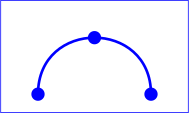
The following example moves a triangle along a path
- http://www.w3.org/TR/SVG/animate.html (original)
- http://tecfa.unige.ch/guides/svg/ex/svg-w3c/animMotion01-en.svg (copy)

<?xml version="1.0" encoding="UTF-8" standalone="no"?>
<!DOCTYPE svg PUBLIC "-//W3C//DTD SVG 1.1//EN" "http://www.w3.org/Graphics/SVG/1.1/DTD/svg11.dtd">
<svg width="5cm" height="3cm" viewBox="0 0 500 300" xmlns="http://www.w3.org/2000/svg" version="1.1" xmlns:xlink="http://www.w3.org/1999/xlink">
  <desc>Example animMotion01 - demonstrate motion animation computations</desc>
  <rect x="1" y="1" width="498" height="298" fill="none" stroke="blue" stroke-width="2"/>

  <!-- Draw the outline of the motion path in blue, along
          with three small circles at the start, middle and end. -->
  <path id="path1" d="M100,250 C 100,50 400,50 400,250" fill="none" stroke="blue" stroke-width="7.06"/>
  <circle cx="100" cy="250" r="17.64" fill="blue"/>
  <circle cx="250" cy="100" r="17.64" fill="blue"/>
  <circle cx="400" cy="250" r="17.64" fill="blue"/>

  <!-- Here is a triangle which will be moved about the motion path.
       It is defined with an upright orientation with the base of
       the triangle centered horizontally just above the origin. -->
  <path d="M-25,-12.5 L25,-12.5 L 0,-87.5 z" fill="yellow" stroke="red" stroke-width="7.06">

    <!-- Define the motion path animation -->
    <animateMotion dur="6s" repeatCount="indefinite" rotate="auto">
       <mpath xlink:href="#path1"/>
    </animateMotion>
  </path>
</svg>
Note: The definition of the painted line and of the motion path follows exactly the same path. Also note that if you wanted to move an object that had an initial position, such as the first blue circle, then you should define all points of the motion path depending on the initial position of the object!
<circle cx="100" cy="250" r="17.64" fill="blue" />
Here the circle is x = y = 100 and 250. If you want to move the circle to the right of 100 and 100 upwards, you must enter as a point 100.100, that is to say, just moving this amount and not moving to !
Representation of a path
The SVG path element allows to produce complex figures with a set of coordinates and commands that specify the relations between the points (lines, curves ...). Here are the available commands:
- M: move (Move);
- L: creation of a line
- H: creating a horizontal line
- V: Creating a vertical line
- C: Creating a curve
- S: creation of a smooth curve
- Q: Creating a bezier curve;
- T: Creating a smoothed bezier curve
- A: creation of an arc;
- Z: termination of the road or path.
Partial formal definition of the animateMotion element
<!ELEMENT animateMotion EMPTY>
<!ATTLIST animateMotion

  <!-- Timing attributes -->
  begin          CDATA  #IMPLIED
  dur            CDATA  #IMPLIED
  end            CDATA  #IMPLIED
  restart        (always | never | whenNotActive)  "always"
  repeatCount    CDATA  #IMPLIED
  repeatDur      CDATA  #IMPLIED
  fill           (remove | freeze) "remove"

  additive       (replace | sum) "replace"
  accumulate     (none | sum) "none"
  calcMode       (discrete | linear | paced | spline) "paced"
  values         CDATA  #IMPLIED
  from           CDATA  #IMPLIED
  to             CDATA  #IMPLIED
  by             CDATA  #IMPLIED
  keyTimes       CDATA  #IMPLIED
  keySplines     CDATA  #IMPLIED
  path           CDATA  #IMPLIED
  origin         (default) "default"
/>
Animating elements within complex SVG drawings[edit | edit source]
Most SVG clipart, e.g. from openclip.org has been created with a drawing tool, e.g. Inkscape, Illustrator or Coreldraw. All these produce fairly ugly code. In addition, objects that were moved around then to b e wrapped in complex transformation code which makes adding animation an additional pain...
Roughly, here is a procedure illustrated for motion animation using InkScape.
- (1) Change the IDs of all objects you want to animate
- Open the file in InScape
- Select the object you plan to animate (Group or ungroup if necessary, using the "Object menu"). Move it a bit for testing.
- Open the XML Editor: Menu Edit->XML Editor
- Make sure the object is still selected
- Click on the "id" attribute and change its name, e.g. call it cloud1. Hit "set" to confirm
- (2) Draw a path the for motion animation
- Use the freehand lines or the Bezier curves tool to draw a line. Try to draw on top of everything else.
- Then change the id of this line as above, e.g. call it anim_path1
- Make the line invisible if you want, e.g. also in the XML Editor. However, for testing you may keep the stroke.
- Add the motion animation
- You may do this in Inkscape by adding an XML node first and then the various attributes. We prefer using an XML editor or even a simple text editor. Use code like this:
   <animateMotion xlink:href="#cloud1" dur="10s" repeatCount="indefinite">
       <mpath xlink:href="#anim_path1"/>
    </animateMotion>
- The result may not be convincing, since the element to be moved and the motion path may not use the same coordinate system. In particular, the object to be moved may have been translated. You can try putting the path inside the object, however this may not help.
  <g id="cloud1">
   .........
   <animateMotion dur="10s" repeatCount="indefinite">
       <mpath xlink:href="#anim_path1"/>
    </animateMotion>
  </g>
Read more in Using Inkscape for web animation
Animations combined[edit | edit source]
It is quite difficult to synchronize a complicated script. On the other hand, creating sequences of animations or animations in parrallel is quite simple.
Triggering an animation at the end of another[edit | edit source]
Instead of defining start of an animation by setting a begin time, it is possible to define sequences of events, ie. starting an animation at the end of another animation. Use the construction ID_of_prior_animation.end:
begin = "previous_animation.end"
The next example implements a sequence where an animation starts when the first has finished.
<?xml version="1.0"?>
<svg width="600" height="100"
     xmlns="http://www.w3.org/2000/svg">
  <title>Simple animate example, second is triggered after first</title>

  <desc>This animation starts 1 second after the green ends (id="GreenAnim")</desc>
  <rect id="BlueSquare"
	stroke="blue" height="80" width="23"
	stroke-width="5" fill="#ffffff">
    <animate attributeName="x" attributeType="XML" begin="g_anim.end"
             dur="3s" fill="freeze" from="0" to="300"/>
  </rect>

  <rect id="GreenSquare" stroke="green" height="80" width="67"
	stroke-width="5" fill="#ffffff">
    <animate id="g_anim"
	     attributeName="x" attributeType="XML" begin="0s" dur="6s"
             fill="freeze" from="300" to="0"/>
  </rect>
</svg>
Life examples:
- SVG version: http://tecfa.unige.ch/guides/svg/ex/anim-trans/simple-chain.svg
- HTML5 version: http://tecfa.unige.ch/guides/svg/ex/anim-trans/simple-chain.html

This way you can make loops of complex events.
Combined animations[edit | edit source]
This example is taken from the SVG 1.1 specification
It contains several animations:
- width / height of the yellow rectangle
- displacement of the origin of the yellow rectangle (up left)
- animation color for text
- movement along a path of the text
- rotation of the text
- expansion of the text
<?xml version="1.0" encoding="UTF-8" standalone="no"?>
<!DOCTYPE svg PUBLIC "-//W3C//DTD SVG 1.1//EN" "http://www.w3.org/Graphics/SVG/1.1/DTD/svg11.dtd">
<svg width="8cm" height="3cm" viewBox="0 0 800 300" xmlns="http://www.w3.org/2000/svg" version="1.1">
  <desc>Example anim01 - demonstrate animation elements</desc>
  <rect x="1" y="1" width="798" height="298" fill="none" stroke="blue" stroke-width="2"/>

  <!-- The following illustrates the use of the 'animate' element
        to animate a rectangles x, y, and width attributes so that
        the rectangle grows to ultimately fill the viewport. -->
  <rect id="RectElement" x="300" y="100" width="300" height="100" fill="rgb(255,255,0)">
    <animate attributeName="x" attributeType="XML" begin="0s" dur="9s" fill="freeze" from="300" to="0"/>
    <animate attributeName="y" attributeType="XML" begin="0s" dur="9s" fill="freeze" from="100" to="0"/>
    <animate attributeName="width" attributeType="XML" begin="0s" dur="9s" fill="freeze" from="300" to="800"/>
    <animate attributeName="height" attributeType="XML" begin="0s" dur="9s" fill="freeze" from="100" to="300"/>
  </rect>

  <!-- Set up a new user coordinate system so that
        the text string's origin is at (0,0), allowing
        rotation and scale relative to the new origin -->
  <g transform="translate(100,100)">
    <!-- The following illustrates the use of the 'set', 'animateMotion',
         'animateColor' and 'animateTransform' elements. The 'text' element
         below starts off hidden (i.e., invisible). At 3 seconds, it:
           * becomes visible
           * continuously moves diagonally across the viewport
           * changes color from blue to dark red
           * rotates from -30 to zero degrees
           * scales by a factor of three. -->
    <text id="TextElement" x="0" y="0" font-family="Verdana" font-size="35.27" visibility="hidden">
      It's alive!
      <set attributeName="visibility" attributeType="CSS" to="visible" begin="3s" dur="6s" fill="freeze"/>
      <animateMotion path="M 0 0 L 100 100" begin="3s" dur="6s" fill="freeze"/>
      <animateColor attributeName="fill" attributeType="CSS" from="rgb(0,0,255)" to="rgb(128,0,0)" begin="3s" dur="6s" fill="freeze"/>
      <animateTransform attributeName="transform" attributeType="XML" type="rotate" from="-30" to="0" begin="3s" dur="6s" fill="freeze"/>
      <animateTransform attributeName="transform" attributeType="XML" type="scale" from="1" to="3" additive="sum" begin="3s" dur="6s" fill="freeze"/>
    </text>
  </g>
</svg>
Online example:
- http://tecfa.unige.ch/guides/svg/ex/svg-w3c/anim01-en.svg
- Original: http://www.w3.org/TR/SVG/animate.html#AnimateMotionElement

Repeated chained animations[edit | edit source]
Repeating a single animation is simple. Repeating a set of animations is less.
The following example (that should be documented here ...) shows some a set of LEDs that turn on, on a after each other. Once the last is done, it will restart the first. Remember the following trick, in a begin you can have both a time (0s in this case) and an end of another animation + time (anim12.end+1s in this case)
<animate .... begin="0s; anim12.end+1s" ...../>
The following result is not convincing since a fill="freeze" that was used is still in effect.
- chain-animation.svg (not convincing)
We found two solutions:
Use values instead of chaining:
Chain and reset the fill value:
Including animated SVG files in HTML5[edit | edit source]
To make animations work you cannot use the HTML image element. Use the HTML object element or the SVG image element.
Important notice: If the included picture does not display as it should, set its width and height to 100% and maybe add a viewBox as shown in the included SVG file and explained (a bit) in the Using SVG with HTML5 tutorial
Life example and code:
- http://tecfa.unige.ch/guides/svg/ex/html5/html5-animation-with-object.html
- http://tecfa.unige.ch/guides/svg/ex/anim-colors/anim-color1.svg (include SVG file)
<!DOCTYPE html>
<html>
  <head>
    <title>HTML5 SVG demo</title>
    <meta http-equiv="Content-Type" content="text/html;charset=utf-8" />
  </head>
  <body>
    <h1>HTML5 SVG Demo (embed with object and SVG-image)</h1>

    <object type="image/svg+xml"
	    data="../anim-colors/anim-color1.svg"
	    style="float:left;padding:5px;margin-right:1cm;"
	    width="90" height="90" border="1"></object>

    <svg height="90" width="90"
	 style="float:right;padding:5px;border:1px solid"
	 xmlns="http://www.w3.org/2000/svg"
	 xmlns:xlink="http://www.w3.org/1999/xlink" >
      <image x="0" y="0" height="90" width="90"
	     xlink:href="../anim-colors/anim-color1.svg" />
    </svg>
    <p>The animated picture to the left includes a SVG/SMIL animation. The SVG file that was included is <a href="http://tecfa.unige.ch/guides/svg/ex/anim-colors/anim-color1.svg">here</a>.
    </p>
    <p>
      The animated picture to the right is the same picture included with SVG code:
    </p>
</body>
</html>
The common attributes for tags animation[edit | edit source]
Here's a quick summary of the most common attributes, without going into details, to use as a guide and then look at a manual if necessary.
xlink:href = "uri"
- SVG can use the XLink language for identifying the animation target. In other words, this is a URI reference (external or internal) to the element that is the target of this animation and whose attribute will be changed. Put more simply: An xlink:href creates a link to the id of the element to animate
- Alternatively, one can animation tags within an element. In this case, we refer to the attributes of the parent element.
When using xlink, one must declare the "xlink" namespace in a parent element. We suggest to do this in the root element (<svg>). Some SVG code that you can find on the Internet and even in published books does not and it must be added to make it work in a modern browser.
<svg width="8cm" height="3cm" xmlns="http://www.w3.org/2000/svg">
attributeName = "name"
Specifies the name of the attribute must be animate, for example x
  <animate attributeName="x" attributeType="XML"
           begin="0s" dur="5s" from="50" to="300" fill="freeze"/>
attributType = "type"
Indicates the attribute type that should animate, for example:
  <animate attributeName="x" attributeType="XML"
           begin="0s" dur="5s" from="50" to="300" fill="freeze"/>
Below, it animates the attribute "x" (x position) of a rectangle and it is of type XML (SMIL):
<rect x="300">
 <animate attributeName="x" attributeType="XML"
   begin="0s" dur="9s" fill="freeze" from="300" to="100" />
</rect>
begin = begin-value-list
Defines when the element should begin (ie become active).
The definition of begin-value-list is complicated, you can define multiple start and end timing as needed (see specification). In simple cases we tell just a beginning. The following example says "10 seconds" (see below for other "clock-value" simple:
<animate attributeName="x" attributeType="XML"
         begin="10s" dur="9s" fill="freeze" from="300" to="100" />
Later, we'll see you can also use the interaction with a user event (eg click) to trigger an animation.
dur = Clock-value | "media" | "indefinite"
defines the duration of the animation
- Clock-value specifies the length of a presentation time. The value must be greater than 0.
- "Indefinite" specifies the simple duration as indefinite (this is the default if you do not specify a duration or "media")
- Typically indicates one second, eg. 10s = 10 seconds
<animate attributeName="x" attributeType="XML"
         begin="0s" dur="9s" fill="freeze" from="300" to="100" />
There are several ways to define a "clock-value". Here qqs. examples that work:
- Values clock (Clock-value) complete:
02:30:03 = 2 hours, 30 minutes and 3 seconds
50:00:10.25 = 50 hours, 10 seconds and 250 milliseconds
- Partial clock value:
02:33 = 2 minutes and 33 seconds
00:10.5 = 10.5 seconds = 10 seconds and 500 milliseconds
- Timecount values:
3.2h = 3.2 hours = 3 hours and 12 minutes
45min = 45 minutes
30s = 30 seconds
5ms = 5 milliseconds
12467 = 12 seconds and 467 milliseconds
end = end-value-list
defines when animation ends
min = Clock-value | "media"
defines the minimum animation time
max = Clock-value | "media"
Defines the maximum value of the active duration of the animation.
The following three attributes are used less often and can constrain the active duration. You may define an end, a minimum or maximum duration.
restart = "always" | "whenNotActive" | "never"
- always: The animation can be restarted at any moment. This is the default.
- whenNotActive: The animation can be restarted when it is not active
repeatCount : numeric value | "indefinite"
Specifies the number of iterations of the animation function. The attribute value can be one of the following:
- numeric value = numeric "decimal" which specifies the number of iterations.
- "Indefinite" = The animation is defined to repeat indefinitely (ie until the user moves away from the document).
repeatDur : Clock-value | "indefinite"
Defines the total time for the repetition.
- Clock-value = specifies the duration
- "Indefinite" = animation is defined to repeat indefinitely (ie until the end of the document).
fill : "freeze" | "remove"
- = freeze the animation effect F (t) is defined to freeze at the end of the active duration. The animation effect is "frozen" for the rest of the document duration (or until the animation is restarted)
- remove = the effect of animation is stopped (no longer applicable) when the active duration of the animation is complete. (Unless it is restarted)
Attributes for animation values interpolated[edit | edit source]
Here's a quick summary without going into details
- The basic principle of this type of language (as in VRML) is to let the designer the possibility to simply define at least two values (start / end) and let the machine handle the transition between these values (interpolation)
Definition of interpolation:
- In animation, computing intermediate images between two polynomial forms or between two positions on the screen.
- For color, calculation of intermediate colors between two colors
calcMode = "discrete | linear | paced | spline"
Specifies the interpolation mode for animation.
- discrete = animation function will jump from one value to another without any interpolation.
- linear = a simple linear interpolation between the values is used for the calculation of the animation function. Except for 'animateMotion' this is the default for calcMode.
- paced = to produce an even pace of change during the animation.
- spline = interpolates from a value of the attribute list and the following values, according to a time function defined by a cubic Bezier curve (spline). The points of the spline are defined in the keyTimes and control points for each interval are defined in the keySplines.
values = "list"
- A list of one or more values, separated by semicolons.
- The values you can specify, depend on the type of animation
keyTimes = "list"
- A list of time values, separated by semicolons, used to control the speed of the animation.
- Each time value in the list of keyTimes is defined as decimal value between 0 and 1 (inclusive), representing a proportional offset of the duration of the animation
keySplines = "list"
- A set of Bezier control points associated with the list of keyTimes, defining a cubic Bezier function that controls the speed of the scrolling intervals.
Attributes that control the sequence of events[edit | edit source]
additive = replace | sum
- This tag is used when performing only one processing at the same time.
- sum = the animation will add to the underlying value of the attribute and other lower priority animations.
- replace = the animation will override the underlying value of the attribute and other lower priority animations. This is the default
- If a simple "grow" animation can increase the width of an object 10 pixels ....
 <rect width="20px" ...>
   <animate attributeName="width" from="0px" to="10px" dur="10s"
            additive="sum"/>
 </rect>
... it is frequently useful for repeated animations to build it on the basis of previous results that accumulate with each iteration. The following example is the rectangle continues to grow as and when the repetition of the animation:
 <rect width="20px" ...>
   <animate attributeName="width" from="0px" to="10px" dur="10s"
            additive="sum" accumulate="sum" repeatCount="5"/>
 </rect>
At the end of the first repetition, the rectangle has a width of 30 pixels, at the end of the second a width of 40 pixels and the end of the fifth a width of 70 pixels.
accumulate = "none | sum"
- See the specification
Example: Deltas of an animation
- http://tecfa.unige.ch/guides/svg/ex/anim-trans/inc-growth.svg
- http://tecfa.unige.ch/guides/svg/ex/anim-trans/

- At the end of the first repetition, the rectangle has a width of 40 pixels, at the end of the second a width of 60 pixels and the end of the fifth a width of 120 pixels.
- The total animation lasts 5 * 5 s = 25 seconds
- We build on previous results, accumulating with each iteration:
<rect x="50" y="50" width="20px" height="20px"
  style="fill:yellow;stroke:black">
  <animate attributeName="width" dur="5s" repeatCount="5"
           fill="freeze"
           from="0px" to="20px"
           additive="sum" accumulate="sum"/>
 </rect>

 <text x="55" y="90" style="stroke:#000099;fill:#000099;fontsize:24;">
  Hello. Let’s show a growing rectangle ! </text>
The future[edit | edit source]
Currently there exist four HTML5 animations: SVG/SMIL, SVG/DOM, Canevas, and CSS/JS. These are not very compatible. In addition, there is some missing stuff in SML.
This is the reason why the W3C works on a new specification:
- Web animations (First working draft in 2013)
See Alex Danilo's talk at SVG Open '2012 for a good introduction (video).
Resources[edit | edit source]
- Specification
- W3C Recommendation SVG1 in French. JJ Solari translator. http://www.yoyodesign.org/doc/w3c/svg1/
- Scalable Vector Graphics (SVG) 1.1 (Second Edition), W3C Working Draft 22 June 2010, W3C Working Draft 22 June 2010, http://www.w3.org/TR/SVG11/
- The animation modules of SMIL 2.0 Chapter of the French translation.
- Tutorials and examples used
- Tricks of Javascript, SVG and SMIL (tested with FF 4)
See also
Acknowledgments[edit | edit source]
Thanks to JJSolari (the translator of the W3C recommendation SVG1 in French). I "pumped" a lot of this text.
The section on principles of animation has been widely copied from the translation of SMIL Animation W3C Recommendation 4 September 2001 . This translation was made by Patrick Schmitz and Aaron Cohen and we thank them also. The reason why I went from the french translation back to English was that I did the french version first - DKS March 2012
Original source: https://edutechwiki.unige.ch/en/SVG-SMIL animation tutorial
Status: article is cached
 EncycloReader
is supported by the
EncycloReader
is supported by the  KSF
KSF