Static SVG tutorial
 From Edutechwiki - Reading time: 26 min
Introduction[edit | edit source]
This short tutorial aims to introduce static SVG 1.1. It may contain mistakes since it's a translation from old SVG slides made some 10 years ago - Daniel K. Schneider 20:04, 3 April 2012 (CEST).
See also
- SVG (read first)
- SVG links (for better alternatives)
- Using SVG with HTML5 tutorial (if you want to play first with imported examples)
- XSLT to generate SVG tutorial
- SVG/SMIL animation tutorial
SVG code can be used "stand-alone" or it can be directly embedded in HTML5. We first shall look into stand-alone SVG files, i.e. files that contain nothing but SVG.
SVG with HTML5 is explained in the next section. The only difference between a HTML5 embedded SVG file and stand-alone SVG file is that you must add an XML declaration on top of the stand-alone SVG file.
SVG file structure[edit | edit source]
Each stand-alone SVG file has the following structure:
- XML declaration
- An svg root element including a so-called XML namespace declaration for SVG, i.e.
xmlns="http://www.w3.org/2000/svg"
Minimal SVG structure
 <?xml version="1.0"?>
 <svg xmlns="http://www.w3.org/2000/svg">
 ......
 </svg>
Typical SVG structure
Often an SVG file contains internal links. In this case, a xlink namespace must be defined. The example below also defines the size of the SVG canvas. Defining the size is optional but highly recommended.
 <?xml version="1.0"?>
 <svg xmlns="http://www.w3.org/2000/svg"
      xmlns:xlink="http://www.w3.org/1999/xlink"
      width="600" height="300">
 ......
 </svg>
For folks with an XML background: You can include a DTD (Document Type Definition) since it's useful for editing SVG code with an XML editor. In some of our examples, you will find on line two something like:
<!DOCTYPE svg PUBLIC "-//W3C//DTD SVG 1.1//EN"
          "http://www.w3.org/Graphics/SVG/1.1/DTD/svg11.dtd">
Folks without XML background: You can remove the Doctype declaration or read the Editing XML tutorial if you want to understand why working with a Document Type Definition (DTD) can be useful.
Introductory example
The following example shows the code for the simple (reduced) SVG graphic to the right

<?xml version="1.0" standalone="no"?>
<!DOCTYPE svg PUBLIC "-//W3C//DTD SVG 1.0//EN"
         "http://www.w3.org/TR/2001/REC-SVG-20010904/DTD/svg10.dtd">
 <svg xmlns="http://www.w3.org/2000/svg">

  <!-- small rectangle with rounded corners  -->
  <rect x="50" y="50" rx="5" ry="5" width="300" height="100"
        style="fill:#CCCCFF;stroke:#000099"/>

  <!-- a text in the same place -->
  <text x="55" y="90" style="stroke:#000099;fill:#000099;font-size:24;">
   HELLO cher visiteur
  </text>
 </svg>

As you can see, the drawing will takes up a lot of space. Therefore it is better to define a width and height for the SVG canevas. The following example shows the code for the simple SVG graphic to the right

<?xml version="1.0" standalone="no"?>
<!DOCTYPE svg PUBLIC "-//W3C//DTD SVG 1.0//EN"
         "http://www.w3.org/TR/2001/REC-SVG-20010904/DTD/svg10.dtd">
 <svg xmlns="http://www.w3.org/2000/svg"
     width="355" height="155"
  >

  <!-- small rectangle with rounded corners  -->
  <rect x="50" y="50" rx="5" ry="5" width="300" height="100"
        style="fill:#CCCCFF;stroke:#000099"/>

  <!-- a text in the same place -->
  <text x="55" y="90" style="stroke:#000099;fill:#000099;font-size:24;">
   HELLO cher visiteur
  </text>
 </svg>
Inlining SVG code in HTML5[edit | edit source]
In order to use an SVG Graphic within HTML5, you can just copy/paste SVG code into the HTML code. Alternatively you could include the SVG graphic with one of the inclusion mechanisms as explained in the Using SVG with HTML5 tutorial.
When using SVG code within HTML5, almost the same rules as for standalone SVG files apply, but:
- Kill the xml declaration on top (if you copy/paste)
- By no means you should include the Doctype definition within HTML5 !
Really, just copy/paste the "svg" part.
Below is a simple HTML5 with SVG example.
<!DOCTYPE html>
<html>
  <head>
    <title>HTML5 SVG demo</title>
  </head>

  <body>
    <h1>HTML5 SVG Demo</h1>

A nice green circle:
    <svg id="circle" height="200" xmlns="http://www.w3.org/2000/svg">
      <circle id="greencircle" cx="30" cy="30" r="30" fill="green" />
    </svg>

    <hr>
    <address>Created by DKS. This is free code</address>
  </body>
</html>
Embedding SVG graphic files in HTML5[edit | edit source]
There are several methods to include an SVG graphic:
- Within SVG code through the image element
- Using an iframe
- Using the img element and src attribute (in the same way as bitmpas)
- Using the object element
- As CSS background image
Please see Using SVG with HTML5 tutorial for details.
Overview of coordinates, graphic elements and attributes[edit | edit source]
XML representation[edit | edit source]
Each graphic element is represented by an XML element as we have seen in the introductory example. E.g. <rect> would define a rectangle. These elements:
- are configurable with XML attributes
- inherit attributes from their parents. For example, a rectangle that is embedded within a group (<g>) would inherit a fill color defined for the whole group.
Like other vector languages (eg. X3D), SVG defines basic geometric shapes (rectangle, ellipse, circle, lines, poly-lines and polygons). In addition, there are elements for producing complex shapes, defined by complex paths.
The most important SVG graphic elements are:
- Rectangles <rect>
- The circle <circle> and the ellipse <ellipse>
- Lines <line> and political lines <polyline>
- Polygons <polygon>
- Arbitrary shapes <path>
- Images <image>
- Text
Most elements share a common number of attributes such as the "id" attribute (unique identifier) or "style" (CSS2 styles). Most attribute values are quite intuitive to those who are a bit familiar with CSS.
The path element is very different from the other elements. It includes some kind of non-XML "sub language" that allows drawing complex shapes. Most drawing programs, mostly produce path elements.
Coordinates, positioning and transformations[edit | edit source]
SVG objects are positioned in a coordinate system that begins in the upper left corner. This is standard practice in computer graphics, except for some CAD programs. It is also possible to work with local coordinates.

SVG elements are either positioned either with attributes such as x and y or with so-called translations (see next).
Each object can be translated, rotated and scaled. It inherits the transformations of the parent object. Seen from a different perspective, one can create local coordinate systems.

We shall introduce transformations (including translation) futher down....
Display properties (style)[edit | edit source]
SVG defines dozens of attributes, properties for defining how an element is displayed. (Almost) each graphic has two parts:
stroke, defines how the edge (line) of an object is rendered.fill, defines how to render the inside of an object.
SVG has two different syntax for defining the display properties of the stroke and the fill:
- The style attribute uses CSS2 styles. Styles can be defined in an external file. In other words, it's the same logic as for HTML.
- SVG presentation attributes are simpler to read (and easier to generate)
Example: SVG Presentation Attributes
<rect x="200" y="100" width="60" height="30"
      fill="red" stroke="blue" stroke-width="3" />
Same example using the CSS style attribute
<rect x="200" y="200" width="60" height="30"
      style="fill:red;stroke:blue;stroke-width:3" >
- Advantage of CSS: you can transfer your knowledge of CSS / HTML
- Advantage of the XML attributes: easier to generate with XSLT, PhP etc..
Example: SVG Presentation attributes
(1) Using CSS
 <rect x="50" y="50" rx="5" ry="5" width="300" height="100"
       style="fill:#CCCCFF;stroke:#000099"/>
 <text x="55" y="90" style="stroke:#000099;fill:#000099;font-size:24;">
(2) Using XML attributes method
 <rect x="50" y="50" rx="5" ry="5" width="300" height="100"
       fill="#CCCCFF" stroke="#000099"/>

 <text x="55" y="90" stroke="#000099" fill="#000099" font-size="24">

SVG shapes[edit | edit source]
Rectangles <rect>[edit | edit source]
Sets of rectangles including rounded corners. Below we introduce the most important attributes:
x = "position" and y = "position"
x and y indicate the position with respect to a top left corner. By default, the top left corner of the drawing canvas. Since SVG elements can be embedded within SVG elements, x/y positions also can refer to a so-called local coordinate space.
Examples:
x = "15" y = "15mm"
Defaults:
- x and y are set to 0 (upper left corner)
- You may use any reasonable unit: px, pt, cm, mm, in, etc.
- By default the units are pixels or inherited from a parent element (if there is one that defines units)
width = "<length>" et height = "<length>"
define the size of the rectangle
Examples:
width = "100"
height = "100"
rx = "length" et ry = "length"
rx and ry define rounded corners.
Examples:
rx = "5"
ry = "5"
Rectangles with style:
<?xml version="1.0" standalone="no"?>
<!DOCTYPE svg PUBLIC "-//W3C//DTD SVG 1.0//EN"
         "http://www.w3.org/TR/2001/REC-SVG-20010904/DTD/svg10.dtd">
<svg width="270" height="170" xmlns="http://www.w3.org/2000/svg">
 <title>Some rectangles with differents fills, strokes and opacities</title>

 <rect x="5" y="5" width="265" height="165"
       style="fill:none;stroke:blue;stroke-width:2" />

 <rect x="15" y="15" width="100" height="50"
       fill="blue" stroke="black" stroke-width="3" stroke-dasharray="9 5"/>

 <rect x="15" y="100" width="100" height="50"
       fill="green" stroke="black" stroke-width="3" rx="5" ry="10"/>

 <rect x="150" y="15" width="100" height="50"
       fill="red" stroke="blue" stroke-opacity="0.5" fill-opacity="0.3" stroke-width="3"/>

 <rect x="150" y="100" width="100" height="50"
       style="fill:red;stroke:blue;stroke-width:1"/>
</svg>


The circle <circle> and the ellipse <ellipse>[edit | edit source]
cx = "position" et cy = "position"
Circle example:
cx = "10"
cy = "20"
cx and cy are used instead of x and y because they define the position of the center of the circle (think "c" = circle)
r = "length"
r = "10"
defines the radius of the circle
rx = "length" et ry = "length"
Ellipse example:
rx = "10"
ry = "20"
define the radius of x and y axes of the ellipse ("r" = radius)
For instance:
<?xml version="1.0" standalone="no"?>
<!DOCTYPE svg PUBLIC "-//W3C//DTD SVG 1.0//EN"
          "http://www.w3.org/TR/2001/PR-SVG-20010719/DTD/svg10.dtd">
<svg width="600" height="300"
     xmlns="http://www.w3.org/2000/svg">

 <title>Circles and ellipses </title>

 <circle cx="90" cy="110" r="50"
        fill="red" stroke="blue" stroke-width="10"  />

  <ellipse cx="250" cy="100" rx="50" ry="10" fill="red" />

  <ellipse cx="160" cy="250" transform="rotate(-30)"
        rx="150" ry="100"
        fill="none" stroke="blue" stroke-width="20"  />
</svg>


Lines <line>[edit | edit source]
x1 = "position" and y1 = "position"
Starting point
x1 = "100"
y1 = "300"
x2 = "position" and y2 = "position"
Arrival point
x2 = "300"
y2 = "500"
Polylines <polyline>[edit | edit source]
points = "10,100,10,120,20,20, ........"
Sets of x,y points that are linked
Lines and polylines example:
<?xml version="1.0" standalone="no"?>
<!DOCTYPE svg PUBLIC "-//W3C//DTD SVG 1.0//EN"
         "http://www.w3.org/TR/2001/REC-SVG-20010904/DTD/svg10.dtd">
<svg width="600" height="300"
     xmlns="http://www.w3.org/2000/svg">

 <title>Lines and polylines </title>

 <polyline fill="none" stroke="blue" stroke-width="10"
	   points="50,200,100,200,100,120,150,120,150,200,200,200"  />

 <line x1="300" y1="200" x2="400" y2="100"
       stroke = "red" stroke-width="5"  />

 <line x1="300" y1="100" x2="400" y2="200"
       stroke = "red" stroke-width="5"  />
</svg>


Polygons[edit | edit source]
A polygon is a closed shape, its edge is a "closed" polyline
points = "list of x y values"
points = "10,100,10,120,20,20, ........"
Series of x,y points that will be linked (first to last point)
For instance:
<?xml version="1.0" standalone="no"?>
<!DOCTYPE svg PUBLIC "-//W3C//DTD SVG 1.0//EN"
         "http://www.w3.org/TR/2001/REC-SVG-20010904/DTD/svg10.dtd">
<svg width="600" height="400"
     xmlns="http://www.w3.org/2000/svg">

 <title>Polygones </title>
 <desc>The red star was stolen from the SVG spec</desc>

 <polygon fill="yellow" stroke="blue" stroke-width="10"
	   points="50,250,100,200,100,120,150,120,150,200,200,250"  />


 <polygon fill="red" stroke="blue" stroke-width="10"
	  points="350,75  379,161 469,161 397,215
	  423,301 350,250 277,301 303,215
	  231,161 321,161" />
</svg>


Complex shapes <path>[edit | edit source]
The element <path> allows to define complex polylines and shapes. A shape is a closed polyline.
d = "path data"
- d = "M 100 100 L 300 100 L 200 300 z"
- d = "M100, 100 L300, 100 200.300 z" (same command)
"Path data" is a fairly complex construct that we only introduce partially.
The syntax for "path data" includes letters representing drawing and moving operations and numbers representing positions. You may insert commas and newlines as you like and also you can eliminate the white spaces between a command (letter) numbers.
"Path data" are defined with the d attribute
d = M et m
M and m are "moveto" commands. Imagine a pencil that is repositioned without drawing. M defines absolute coordinates, m defines relative coordinates with respect to the starting point.
Abstract syntax: M | m (xy)+
Example: M100 100 200 200
d = L and l
L and l draw lines from the current position to the indicated positions. It thus resembles the polyline.
Abstract syntax: L | l (xy)+
L 200,300 100,200
Pentagram example
<?xml version="1.0" encoding="utf-8"?>
<!DOCTYPE svg PUBLIC "-//W3C//DTD SVG 1.0//EN" "http://www.w3.org/TR/2001/REC-SVG-20010904/DTD/svg10.dtd">
<svg xmlns="http://www.w3.org/2000/svg" width="304" height="290">
	<path d="M2,111h300 l-242.7,176.3 92.7-285.3 92.7,285.3z"
	fill="#FB2" stroke="#B00" stroke-width="4" stroke-linejoin="round"/>
</svg>


d = Z and z
Z and z close the current sub-path. In other words, it will draw a line from the current point to the beginning of the path (defined with a M or m)
Abstract syntax: Z | z
d = H and h, V and v
draw vertical and horizontal lines.
h100
Example of a simple path:
The following code draws two triangles, red and yellow with a blue border.
<?xml version="1.0" standalone="no"?>
<!DOCTYPE svg PUBLIC "-//W3C//DTD SVG 1.0//EN"
  "http://www.w3.org/TR/2001/REC-SVG-20010904/DTD/svg10.dtd">
<svg width="400" height="200" xmlns="http://www.w3.org/2000/svg">

 <title>Example triangles - using both path and polygon </title>

 <path d="M 50 50 L 100 150 150 50 z"
       fill="red" stroke="blue" stroke-width="2" />

 <polygon points="150 50 200 150 250 50"
       fill="yellow" stroke="blue" stroke-width="2" />
</svg>


- We first move the pencil (
M 50 100), then we draw a line towards the bottom corner (L 100 100) and towards the top right corner (150 100),. Finally we close the shape (z). - The yellow triangle (similar) was done with <polygon>
d = C et c, S et s
- Bezier curves
d = Q et q, T et t
- Quadratic Bezier curves
d = A et a
- Abstract syntax: A | a (rx ry x-axis-rotation large-arc-flag sweep-flag xy) +
Some cake examples:
<?xml version="1.0" standalone="no"?>
<!DOCTYPE svg PUBLIC "-//W3C//DTD SVG 1.0//EN"
  "http://www.w3.org/TR/2001/REC-SVG-20010904/DTD/svg10.dtd">
<svg width="600" height="400" xmlns="http://www.w3.org/2000/svg">

 <title>Simple cake with 'path'</title>
 <desc>Inspired from a SVG 1.0 specification example</desc>

 <path d="M180,180 v-75 a75,75 0 0,0 -75,75 z"
       fill="yellow" stroke="blue" stroke-width="5" />

 <path d="M200,200 h-50 a50,50 0 1,0 50,-50 z"
       fill="red" stroke="blue" stroke-width="5" />

 <!-- some baking that has gone wrong :) -->
 <path d="M400,180 L350,150 a100,60 0 1,0 100,-50 z"
       fill="green" stroke="blue" stroke-width="5" />

</svg>


Yellow graphic:
- Start drawing at 180, 180 (
M 180,180) - Draw a vertical line toward y = -75 (
v-75). This will be the starting point for the arc. - Draw and arc (
a) with radius x=75 and radius y=75 (75,75), without rotation (0). The second0indicates that the arc is on the "small" side, the third0defines negative direction of drawing. The-75,75indicate the arrival of the arc. - Close the shape with (
z)
Red graphic:
 <Path d = "M200, 200 h a50-50, 0 50 1.0 50 -50 z"
       fill = "red" stroke = "blue" stroke-width = "5" />
- Draw the arc in the same direction (negative), but on the "large" side (
1) of the angle implicitly defined by the departure position, the angle and the arrival position.
The green shape is not symmetric...
 <Path d = "M400, 180 L350, 150 a100, 100 1.0 60 0, -50 z"
       fill = "green" stroke = "blue" stroke-width = "5" />
Text[edit | edit source]
- Text support in SVG 1.0 is quite poor, therefore use SVG 1.1 or better.
- Each 'text' element displays a single text string.
- Texts are graphic objects as any another: One can apply various transformation functions, paint, trimming and masking and a CSS style.
Example:
<text x="55" y="90" style="stroke:#000099;fill:#000099;font-size:18;">
- By default, text is displayed on a line, but it also can follow a path.
tspan:
To display text on multiple lines with SVG 1.0, one has to use either tspan or multiple text elements. 'tspan' elements can be positioned with x, y, dx and dy. The latter two define "deltas".
<text x="55" y="90" style="stroke:#000099;fill:#000099;font-size:18;">
Hello. Let's show: <tspan x="55" dy="20"> a blue rectangle that pops up and goes
again</tspan> <tspan x="55" dy="40">and a yellow that slowly arrives and then stays!</
tspan> </text>
text, tspan et textPath example:
<?xml version="1.0" encoding="ISO-8859-1" standalone="no"?>
<!DOCTYPE svg PUBLIC "-//W3C//DTD SVG 1.0//EN"
          "http://www.w3.org/TR/2001/REC-SVG-20010904/DTD/svg10.dtd">

 <svg width="12cm" height="3.6cm" viewBox="0 0 1000 300"
  xmlns="http://www.w3.org/2000/svg" xmlns:xlink="http://www.w3.org/1999/xlink">
 <title>Exemple toap02 de http://www.yoyodesign.org/doc/w3c/svg1/text.html, pris le 8 Mars 2005</title>

 <defs>
  <path id="MonTrace"
   d="M 100 200
   C 200 100 300   0 400 100
   C 500 200 600 300 700 200
   C 800 100 900 100 900 100" />
 </defs>
 <desc>Exemple toap02 - un 'tspan' dans un 'textPath'</desc>

 <use xlink:href="#MonTrace" fill="none" stroke="red"  />
 <text font-family="Verdana" font-size="42.5" fill="blue" >
  <textPath xlink:href="#MonTrace">
   En
   <tspan dy="-30" fill="red" >
    haut
   </tspan>
   <tspan dy="30">
    ,
   </tspan>
   puis en bas, et encore en haut
  </textPath>
 </text>

 <!-- Montre le contour du canvevas avec un élément 'rect' -->
 <rect x="1" y="1" width="998" height="298"
  fill="none" stroke="blue" stroke-width="2" />
 </svg>

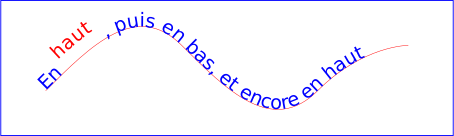
File: http://www.yoyodesign.org/doc/w3c/svg1/text.html (original)
Links[edit | edit source]
SVG allows to link to other resources with URLs.
- The <a> </a> tag will define the sensitive area. In the following example the green rectangle plus the text will become the "link button".
- the link is define with an XLink href attribute (xlink:href = "....")
- Warning: You must declare the namespace for XLink
Example - Link to a web page
<?xml version="1.0" encoding="ISO-8859-1" standalone="no"?>
<!DOCTYPE svg PUBLIC "-//W3C//DTD SVG 20010904//EN"
  "http://www.w3.org/TR/2001/REC-SVG-20010904/DTD/svg10.dtd">
<svg height="900" width="900"
  xmlns:xlink="http://www.w3.org/1999/xlink"
  xmlns="http://www.w3.org/2000/svg">

  <desc>The "a" element will define a link.</desc>

  <a xlink:href="http://tecfa.unige.ch">
    <rect style="fill:#00FF00;stroke:#00FF00" width="300" height="40" ry="5" rx="5" y="80" x="50"/>
    <text x="100" y="110" style="stroke:#000099;fill:#000099;fontsize:24;">TECFA POWER 1 click away</text>
  </a>
</svg>


Structuring: Grouping elements and references[edit | edit source]
Each high-level computer language must allow to grouping of objects into blocks. Such blocks facilitate reuse for example. SVG has several interesting grouping constructs. It is also interesting to note that SVG elements (like HTML elements) inherit the style of their parents! In other words, styles are "cascading".
Below are the most important elements:
- SVG document fragment: <svg>
- Grouping of elements with <g>
- Abstract objects (sets) <symbol>
- Definition section <defs>
- Use of elements <use>
- Title and Description <title> <desc>
SVG fragment : <svg>[edit | edit source]
<svg>is the root of an SVG graph- We can embed SVG elements within SVG elements and position these
- Each <svg> creates a new coordinate system. Thus we can easily reuse clipart from various sources without having to change coordinates. E.g. you could download a nice set of trees and then insert some animal from another source into your forest.
- See also: Using a viewport (below)
Hello SVG Example 2
<?xml version="1.0" standalone="no"?>
<!DOCTYPE svg PUBLIC "-//W3C//DTD SVG 1.0//EN"
          "http://www.w3.org/TR/2001/PR-SVG-20010719/DTD/svg10.dtd">
<svg xmlns="http://www.w3.org/2000/svg">

 <!-- small rectangle with rounded corners  -->
 <rect x="50" y="50" rx="5" ry="5" width="200" height="100"
       style="fill:#CCCCFF;stroke:#000099"/>

 <!-- text in the same space -->
 <text x="55" y="90" style="stroke:#000099;fill:#000099;font-size:14;">
  HELLO dear visitor
 </text>
 <svg with="200" height="200" x="200" y="100">
  <!-- same rectangle with same attributes as above  -->
  <rect x="50" y="50" rx="5" ry="5" width="200" height="100"
	style="fill:#CCCCFF;stroke:#000099"/>

  <!-- same text as above -->
  <text x="55" y="90" style="stroke:#000099;fill:#000099;font-size:14;">
   HELLO dear visitor
  </text>

 </svg>
</svg>


Grouping of elements with <g>[edit | edit source]
The <g> element is used to group elements that "go together":
- Children of <g> inherit properties defined at this level
- Groups can be documented with <title> and <desc>. That will improve search engine results. In other words: title and desc contents are not shown to the user.
Example - A simple group of bamboo
<?xml version="1.0" standalone="no"?>
<!DOCTYPE svg PUBLIC "-//W3C//DTD SVG 1.0//EN"
         "http://www.w3.org/TR/2001/REC-SVG-20010904/DTD/svg10.dtd">
<svg width="200" height="200"
     xmlns="http://www.w3.org/2000/svg">

 <g stroke="green" stroke-dasharray="9 1" >
  <title content="structured text">Mon plus beau dessin
  </title>
  <line x1="5" y1="80" x2="155" y2="80" stroke-width="30"
	stroke="black" stroke-dasharray="none" />
  <line x1="10" y1="30" x2="30" y2="100" stroke-width="5" />
  <line x1="40" y1="30" x2="60" y2="100" stroke-width="10" />
  <line x1="70" y1="30" x2="90" y2="100" stroke-width="15" />
  <line x1="100" y1="30" x2="120" y2="100" stroke-width="20" />
  <line x1="130" y1="30" x2="140" y2="100" stroke-width="25" />
 </g>
</svg>


- Note how the color green and the "dashing"
stroke-dasharray="9 1"are inherited. - The black line "overrides" the color:
stroke = "black"
Defining abstract objects with <symbol>[edit | edit source]
- <symbol> defines a graphical object that is reusable <use>
- <symbol> is a bit like <g>, except that the graphic is not drawn and that it also has the viewBox and preserveAspectRatio attributes that you may set.
 <symbol id="bleublancrouge">
 <rect x="0"  fill="blue" width="10" height="10"/>
 <rect x="10" fill="white" width="10" height="10"/>
 <rect x="20" fill="red" width="10" height="10"/>
 <rect x="0"  fill="none" width="30" height="10" stroke="black"/>
 </symbol>
See the use of use of this graphic below
Definition section with <defs>[edit | edit source]
- <defs> has similar functionality as symbol: anything inside <defs> is defined but not drawn.
- Each element should have an identity defined with the "id" attribute. This way it can be reused.
 <defs>
 <rect id="redsquare" fill="red" width="10" height="10"/>
 <rect id="yellowsquare" fill="yellow" width="10" height="10"/>
 </defs>
An example of reusing elements defined in a defs section is below.
(Re)using elements with <use>[edit | edit source]
- <use> can reuse the following items: <svg>, <symbol>, <g>, graphic elements with and id and <use>
- <use> behaves slightly differently depending on the type of element !)
Reusable objects:
- Each element intended for reuse must have an XML id.
Example:
<rect id="redsquare" fill="red" width="10" height="10"/>
xlink is defined by the XLink standard (not SVG). Therefore, do remember to set its namespace (just do it in the SVG root element whenever you hand-code something)
<svg width="10cm" height="3.5cm" viewBox="0 0 100 30"
      xmlns="http://www.w3.org/2000/svg"
      xmlns:xlink="http://www.w3.org/1999/xlink">
Important attributes:
- x, y, with, height can reposition and resize an object
- xlink:href is needed to reference and instantiate an object, referring to its "id" attribute
Example - Simple reuse of a rectangle that has an id
<?xml version="1.0" standalone="no"?>
<!DOCTYPE svg PUBLIC "-//W3C//DTD SVG 1.0//EN"
  "http://www.w3.org/TR/2001/REC-SVG-20010904/DTD/svg10.dtd">
<svg width="10cm" height="3.5cm" viewBox="0 0 100 30"
     xmlns="http://www.w3.org/2000/svg"
     xmlns:xlink="http://www.w3.org/1999/xlink">
 <desc>Reuilisation d'un rectangle</desc>
 <rect id="MyRect" width="60" height="10"/>
 <use x="20" y="10" fill="yellow" xlink:href="#MyRect" />
 <use x="20" y="20" fill="red" xlink:href="#MyRect" />
</svg>


Example - Double use of a <symbol>
<?xml version="1.0" standalone="no"?>

<!DOCTYPE svg PUBLIC "-//W3C//DTD SVG 1.0//EN"
  "http://www.w3.org/TR/2001/REC-SVG-20010904/DTD/svg10.dtd">

<svg width="10cm" height="3.5cm" viewBox="0 0 100 30"
     xmlns="http://www.w3.org/2000/svg" xmlns:xlink="http://www.w3.org/1999/xlink">
 <desc>Utilisation d'un dessin bleu blanc rouge</desc>
 <symbol id="bleublancrouge">
  <rect x="0"  fill="blue"  width="10" height="10"/>
  <rect x="10" fill="white" width="10" height="10"/>
  <rect x="20" fill="red"   width="10" height="10"/>
  <rect x="0"  fill="none"  width="30" height="10" stroke="black"/>
 </symbol>

 <use x="10" y="5" xlink:href="#bleublancrouge" />
 <use x="20" y="20"  xlink:href="#bleublancrouge" opacity="0.2"/>
</svg>


Example - Using defs nine times
<?xml version="1.0"?>

<svg width="10cm" height="3.5cm" viewBox="0 0 100 30"
     xmlns="http://www.w3.org/2000/svg" xmlns:xlink="http://www.w3.org/1999/xlink">
 <desc>Reuse with defs example</desc>
 <defs>
  <rect id="redsquare" fill="red" width="10" height="10"/>
  <rect id="yellowsquare" fill="yellow" width="10" height="10"/>
 </defs>

 <use x="20" y="0" xlink:href="#yellowsquare" />
 <use x="30" y="0" xlink:href="#redsquare" />
 <use x="40" y="0" xlink:href="#yellowsquare" />

 <use x="20" y="10" xlink:href="#redsquare" />
 <use x="30" y="10" xlink:href="#yellowsquare" />
 <use x="40" y="10" xlink:href="#redsquare" />

 <use x="20" y="20" xlink:href="#yellowsquare" />
 <use x="30" y="20" xlink:href="#redsquare" />
 <use x="40" y="20" xlink:href="#yellowsquare" />
</svg>
Example - dealing with a fill defined in the cloned element
Using the "use" element is a key for producing elegant code. However, you must know that Property inheritance works as if the referenced element had been textually included. That means for example that you cannot simply override a fill color if already one was defined before !
Does not work:
 <rect id="rect_1" fill="blue" x="1cm" y="1cm" width="2cm" height="1cm" stroke="black"/>
 <use xlink:href="#rect_1" x="3cm" fill="red">


Title and Description <title> <desc>[edit | edit source]
<title> <desc> document the code. These elements are not displayed as is, but a client may decide to display these as "tooltips".
2 for reasons for documenting:
- Better understand the code
- Help the user (to explore ...)
- Help search engines index your SVG (SVG is text) !)
Elements that can have <title> and <desc>
- Containers ('svg', 'g', 'defs' 'symbol', 'clipPath', 'mask', 'pattern', 'marker', 'a' and 'switch')
- graphic elements ('path', 'text', 'rect', 'circle', 'ellipse', 'line', 'polyline', 'polygon', 'image' and 'use')
Images <image>[edit | edit source]
- Supported bitmap formats: jpeg and png
- <image> also can insert and svg file (creating a new viewport/local coordinate system)
- See also: Using SVG with HTML5 tutorial
Important attributes:
x = "position" et y = "position"
defines the position (like <rect>, <svg>, <g>, etc..)
width = "length" and height = "length"
defines height and width of the image (like <rect>, <svg>, <g>, etc..)
xlink:href = "uri"
defines the URI where the image can be found
Adjusting the size of the image
- See preserveAspectRatio and in viewBox coordinate system, transformations and units (below)
- An image is by default displayed "as is", so you either have to make sure that it fits or learn some more advanced tricks.
Including an image in several ways
<?xml version="1.0" encoding="ISO-8859-1" standalone="no"?>
<!DOCTYPE svg PUBLIC "-//W3C//DTD SVG 1.0//EN"
  "http://www.w3.org/TR/2001/REC-SVG-20010904/DTD/svg10.dtd">
<svg width="500" height="200"
     xmlns="http://www.w3.org/2000/svg" xmlns:xlink="http://www.w3.org/1999/xlink">
 <desc>Inclusion d'une image externe. Normalement un client doit
       implémenter l'importation de png, jpeg, et svg.
 </desc>

 <image x="10" y="50" width="200" height="100" xlink:href="cathedrale_ge.jpg">
  <title>Eglise large</title>
 </image>

 <image x="250" y="50" width="50" height="100" xlink:href="cathedrale_ge.jpg">
  <title>Eglise longue</title>
 </image>

 <image x="310" y="50" width="100" height="100" xlink:href="cathedrale_ge.jpg"
	preserveAspectRatio="xMinYMin meet">
  <title>Eglise juste</title>
 </image>

</svg>


Coordinate system transformations and units[edit | edit source]
Canvas, viewports and units[edit | edit source]
SVG canvas[edit | edit source]
- The SVG canvas is an infinite space for displaying SVG content. Width and height only define what the user can see, not what is inside...
The SVG viewport[edit | edit source]
- The SVG "viewport" SVG is what the user can see
- The viewport has a coordinate system that starts on top left of the rectangle. This viewport coordinate system is also called viewport space
- We can define a viewport with several elements, e.g. <svg>
- Drawings are painted relative to user coordinate system or user space that initially when the client displays the image is identical to the viewpoint coordinate system
- Some clients allow the user to move and "zoom" the "user space", some are not.
- Any design that exceeds the viewport is not shown, i.e. truncated (clipped)
Lengths[edit | edit source]
- The lengths are specified either by number or by the absolute or relative standard units:
- em, ex (width of "m" and height of an "x" on the current font)
- px (pixel units defined by the device)
- pt, pc (points, and?). Normally the client indicates how many pixels corresponds pt, or pc, similar to the cm, mm and in.
- cm, mm, in
- percentages (with respect to the viewport)
- Default units are inherited from the viewport ! E.g. if you use mm for defining the width and length of your svg, drawings inside that don't use units will be computed in mms
Creation of viewports[edit | edit source]
Warning: This section about viewports is not clear at all and may be updated some other day.... sorry - Daniel K. Schneider 19:54, 3 April 2012 (CEST). Better reading:
Elements that create a new viewport[edit | edit source]
- <svg>, <symbol> (instantiated by <use>) and <image>
Viewports and the viewBox attribute[edit | edit source]
In order to understand the viewBox we must understand what a viewport is. A viewport is what you can see of a graphic. Most often, viewport are defined by the svg element, i.e. its width and height.
Example defining an SVG drawing canevas that takes half width and height and sits 25% down and left with respect to the parent (e.g. an other SVG element or an HTML page)
<svg x="25%" y="25%" width="50%" height="50%">
The following example defines a 5x5cm rectangle that sits in the upper left corner.
<svg x="0" y="0" width="5cm" height="5cm">
Drawing that doesn't fit in the area is clipped by default, i.e. not drawn. The clip and overflow attributes allow to customize this behavior.
You can use real units (em, em, ex, px, pt, pc, cm, mm and in) to define the size of the SVG element and various geometric elements. The viewBox attribute allows to create your own "scale" for coordinates used within an SVG element.
viewBox = "min-x min-y width height"
Caution: Do not use anything else than just numbers! E.g. 1500 and therefore not 15mm or 150px!
Example:
<svg width="300px" height="200px" viewBox="0 0 1500 1000">
- viewBox will graft a new coordinate system on the actual dimensions of a viewport. I.e. within the rectangle, the coordinate system goes from 0 to 1500 and from 0 to 1000. For example a 500x100 rectangle (width=500 and height=100) would display as 100x20 since the viewBox dimensions are five times as big.
- You can also create distortions (where width and height of the viewBox do not use the same proportions as in the viewport).
preserveAspectRatio[edit | edit source]
Warning: The png.* images by the wiki are wrong. You must look at the svg (click 2 times on a picture...)


The preserveAspectRatio attribute is used to define how to preserve the ratios (x, y) in the drawing.
Abstract syntax: preserveAspectRatio = "align_definition [meetOrSlice]"
The "align_definition" parameter indicates what should happen when the relationship between the length and the height of the viewBox does not match the viewBox.
- none - The graphic is stretched in both x and y directions
- xMinYMin - alignment on x-min and y-min (top left corner)
- xMinYMid - alignment on x-min and centering y
- xMinYMax - alignment on x-min and y-max (bottom left corner)
- ... and the other six combinations between x * and Y *.
The parameter "meetOrSlice":
- meet (default) - keep the "aspect ratio", the entire viewBox is visible and is suitable for drawing, a graphic will always be visible but may not use the full viewport.
- slice - keep the "aspect ratio", the viewBox uses the whole viewport and the graphic may be clipped either in the x or the y direction.
Caution: Observe case sensitivity!
Example:


- This example shows some variation of "preserveAspectRatio in a situation where the viewBox does not have the same ratios as the viewports
- In the specification there are more details and examples
- Caution: your SVG client may not detect any syntax errors ....
Transformations with the "transform" attribute[edit | edit source]
- transform is used to define translations, scalings, rotations, so-called matrix transformations, and skews.
Translations[edit | edit source]
- We already have seen that it is possible to define a new coordinate system with a new viewport and viewBox. Using "transform" is easier.
- The "transform" attribute is available for all container elements and graphics.
Abstract syntax: translate (<tx> [<ty>])
Example:
<g transform="translate(50,50)">
Resizing (scaling) with the "scale" parameter[edit | edit source]
Abstract syntax: scale (<sx> [<sy>])
If sy is not specified it is assumed that sy == sx
Examples:
<g transform="scale(2)"> <rect .... /> <g>
<g transform="scale(2,3)"> <rect .... /> <g>
Rotations with "rotate"[edit | edit source]
Abstract syntax: rotate (<rotate-angle> [<cx> <cy>])
- The rotation angle is defined in degrees
- cx and cy define the center of rotation (by default the center is the beginning of the local coordinate system, not the center of the object !)
Order of operations[edit | edit source]
The order of operations is sequential (so it must be read from right to left in these examples)! At each transformation we obtain a new coordinate system! The following two fragments have the same effect:
Compact:
 <g transform="translate(-10,-20) scale(2) rotate(45 translate(5,10)">
 <! - Elements graphics go here ->
 </g>
Lengthy, but easier to understand:
<g transform="translate(-10,-20)">
  <g transform="scale(2)">
     <g transform="rotate(45)">
        <g transform="translate(5,10)">
 <!-- Graphic elements go here -->
 </g> </g> </g> </g>
Simple transformations example:


Click twice on the picture and then look at the code ...
Next steps[edit | edit source]
- Dynamic SVG (animations)
- Interactive SVG
- SVG generation
There are two types of dynamic SVG
(1) Animation with "SMIL" tags
- Only works with newer browsers (2011) except IE9 or with a very old plugin from Adobe
- See the SVG/SMIL animation tutorial
(2) Animation with JavaScript and DOM
- ... is more powerful (you can do anything), but more difficult
- works with all current browsers
Interactive SVG
- requires a little bit of ECMAScript if the rest is done with SMIL tags
- can require a lot of ECMAScript if everything is done through DOM programming
SVG generation
- Server-side generation of static SVG is easy. It can be done with any scripting language.
- XSLT to generate SVG tutorial
Original source: https://edutechwiki.unige.ch/en/Static SVG tutorial
Status: article is cached
 EncycloReader
is supported by the
EncycloReader
is supported by the  KSF
KSF